
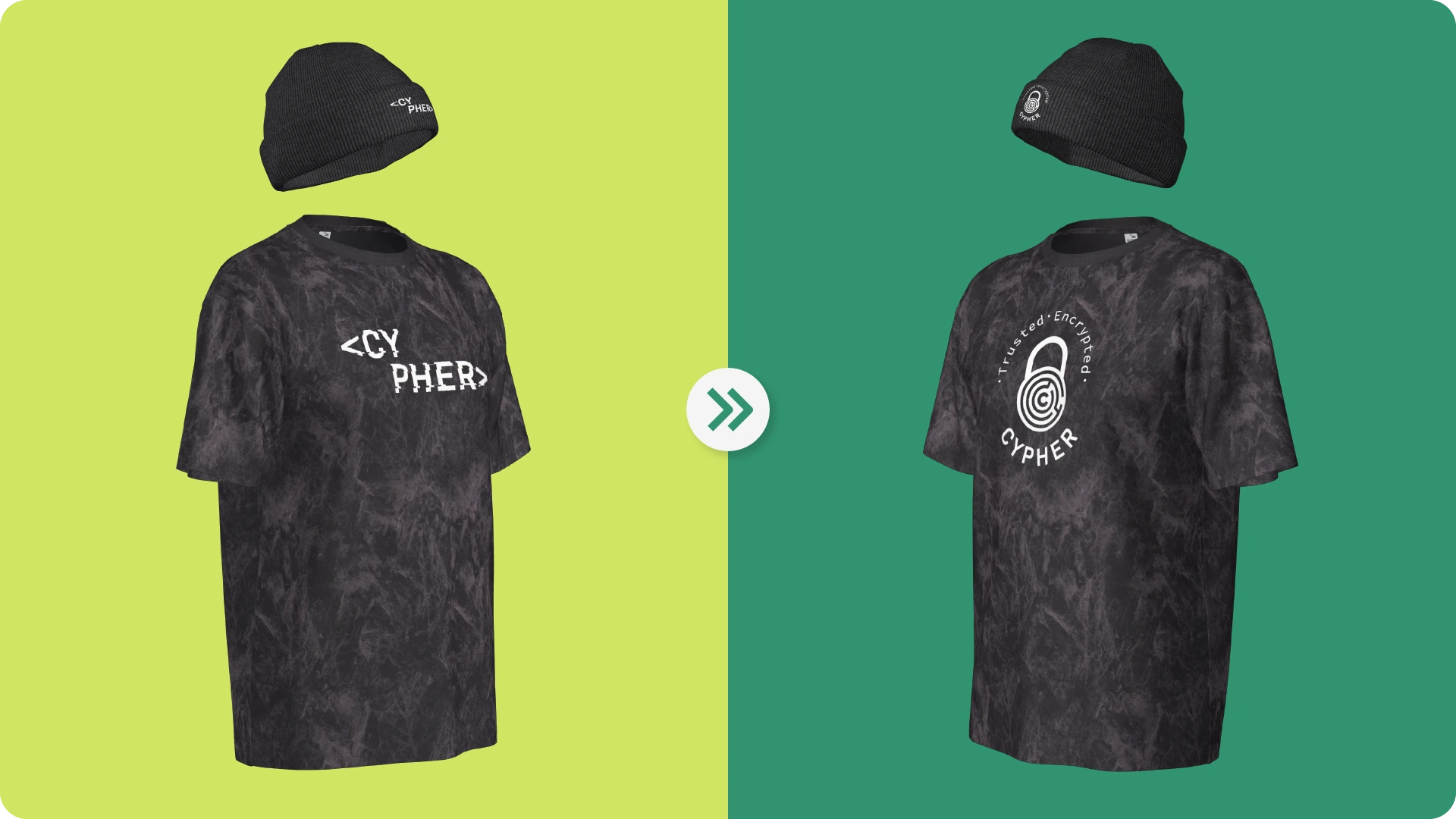
The moment a client asks for “one quick change,” your entire set of mockups is suddenly out of date.
And suddenly, what should be a quick update turns into hours of manual edits across multiple proofs.
That’s where workflows break down.
This is exactly the problem SEDDI Decorator’s Manage Graphics feature solves, giving you a faster way to update apparel visuals across entire collections, without starting over.
The Problem with Updating Mockups Manually
If you’re managing multiple products in a collection, even small changes can create major delays.
Typical workflow:
- Open each product individually
- Replace or edit the graphic
- Reposition artwork
- Adjust colors or technique
- Repeat across every item
This leads to:
- Slower response times
- Inconsistent updates
- Missed details
- Longer approval cycles
When speed and accuracy matter (which is always), this approach doesn’t scale.
What Is the Manage Graphics Feature?
Manage Graphics is a centralized workspace inside Decorator that allows you to:
- Update graphics across multiple products at once
- Replace artwork instantly
- Adjust placement, color, and technique in one place
- Preview changes before applying them
Instead of editing mockups one by one, you control everything from a single view.
How to Use Manage Graphics (Step-by-Step)
Step 1: Open the Manage Graphics Workspace
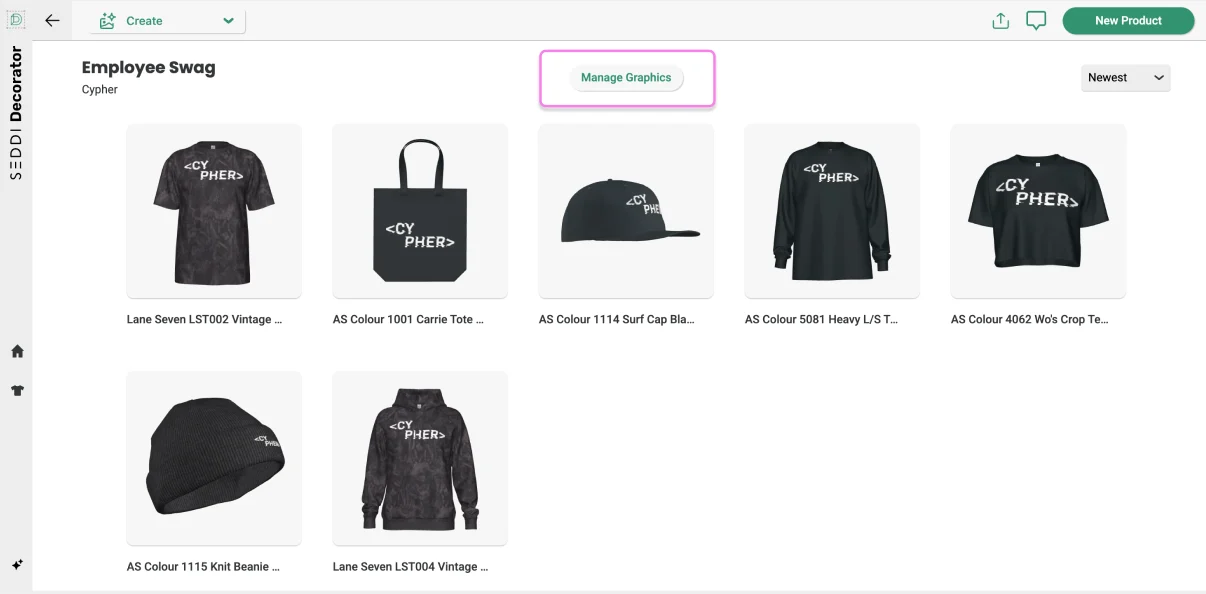
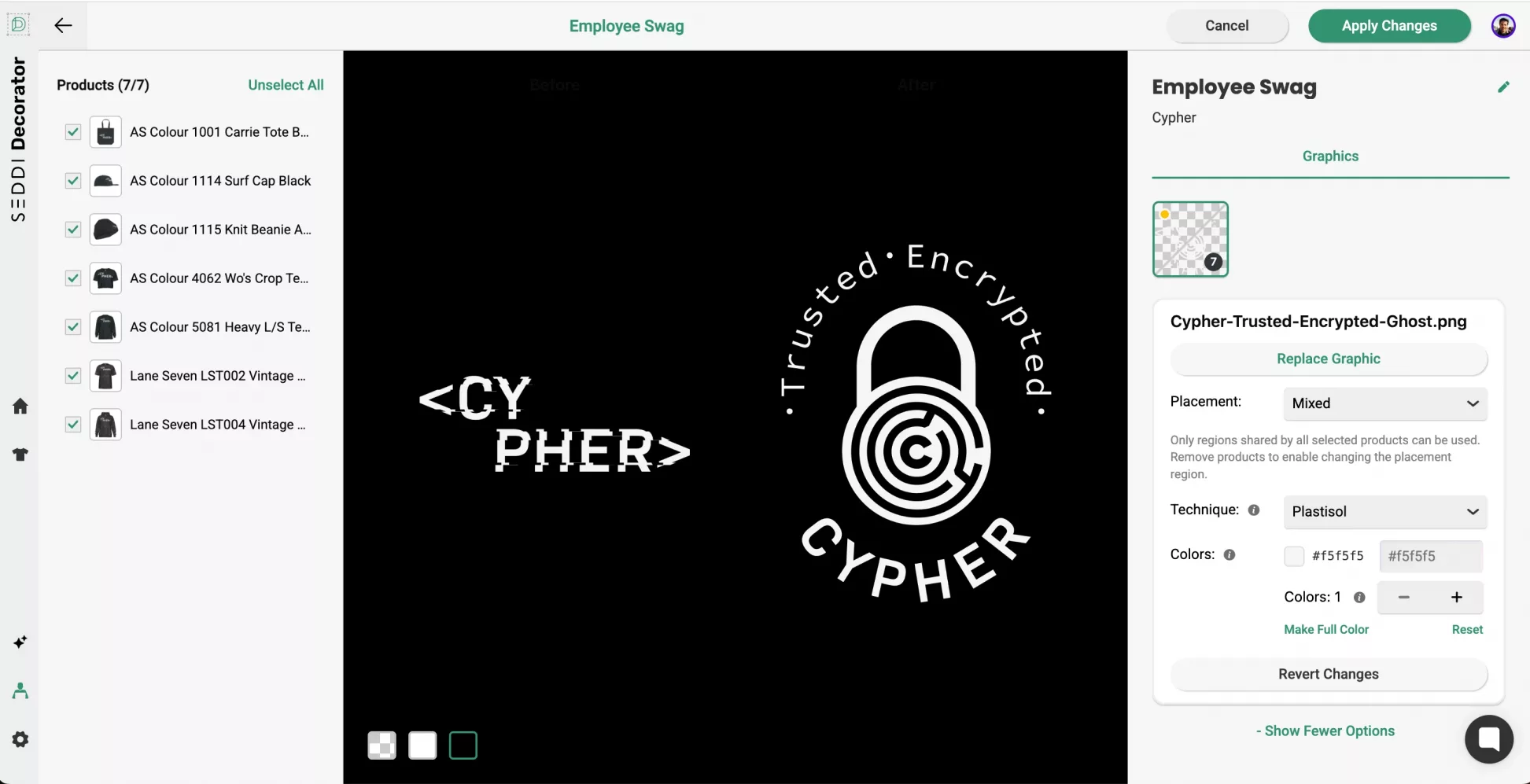
From your collection, click the Manage Graphics button at the top of the screen.
This opens a dedicated workspace where:
- Products are listed on the left
- Graphics appear on the right
- The selected graphic is displayed in the center
This layout gives you full visibility into how graphics are applied across your collection.
Step 2: Review and Adjust the Selected Graphic
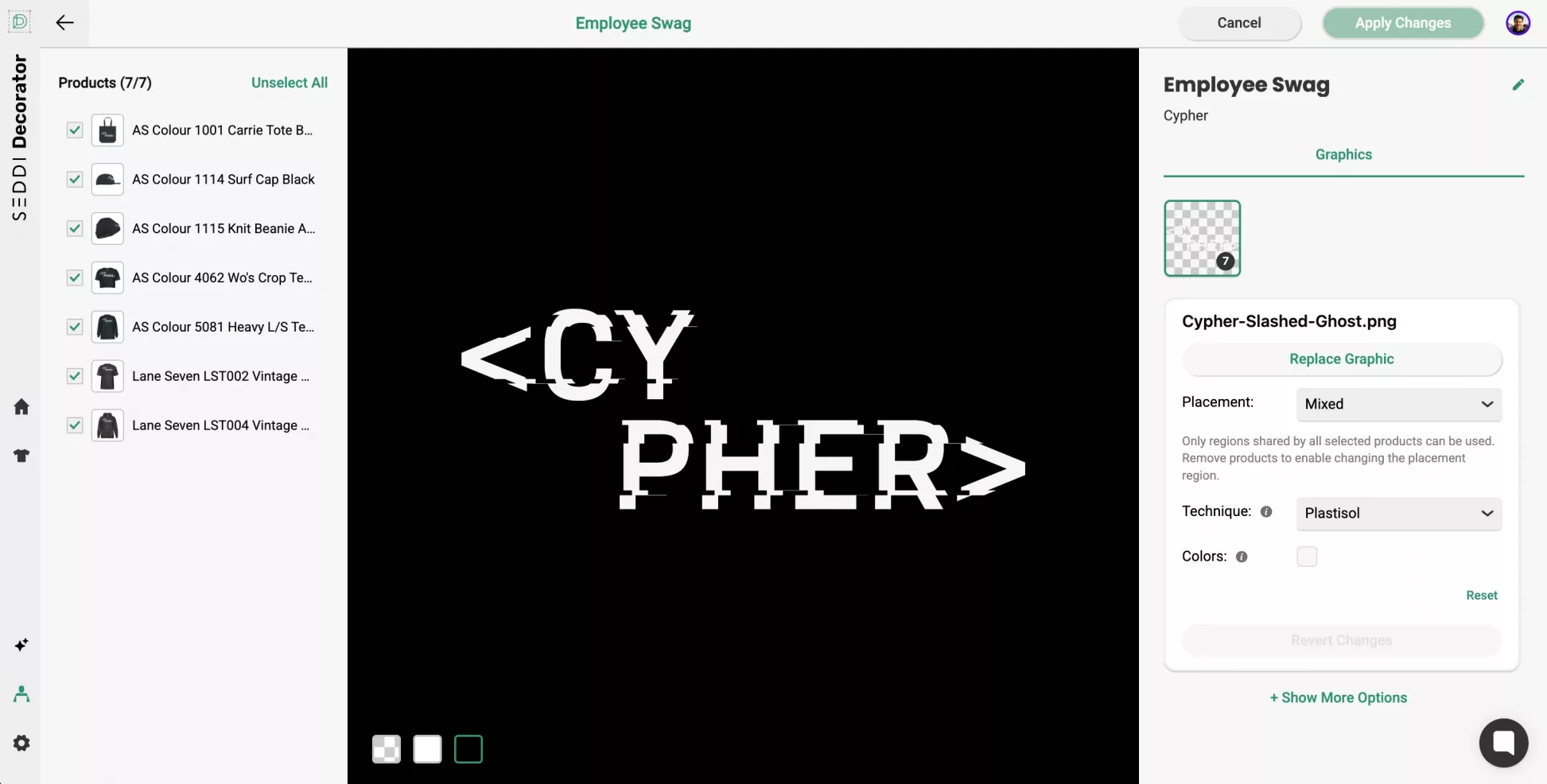
In the center viewport, you can preview the selected graphic.
You can also toggle the background using the display controls at the bottom, making it easier to review artwork clearly in different contexts.
Step 3: Make Bulk Updates from the Graphics Panel
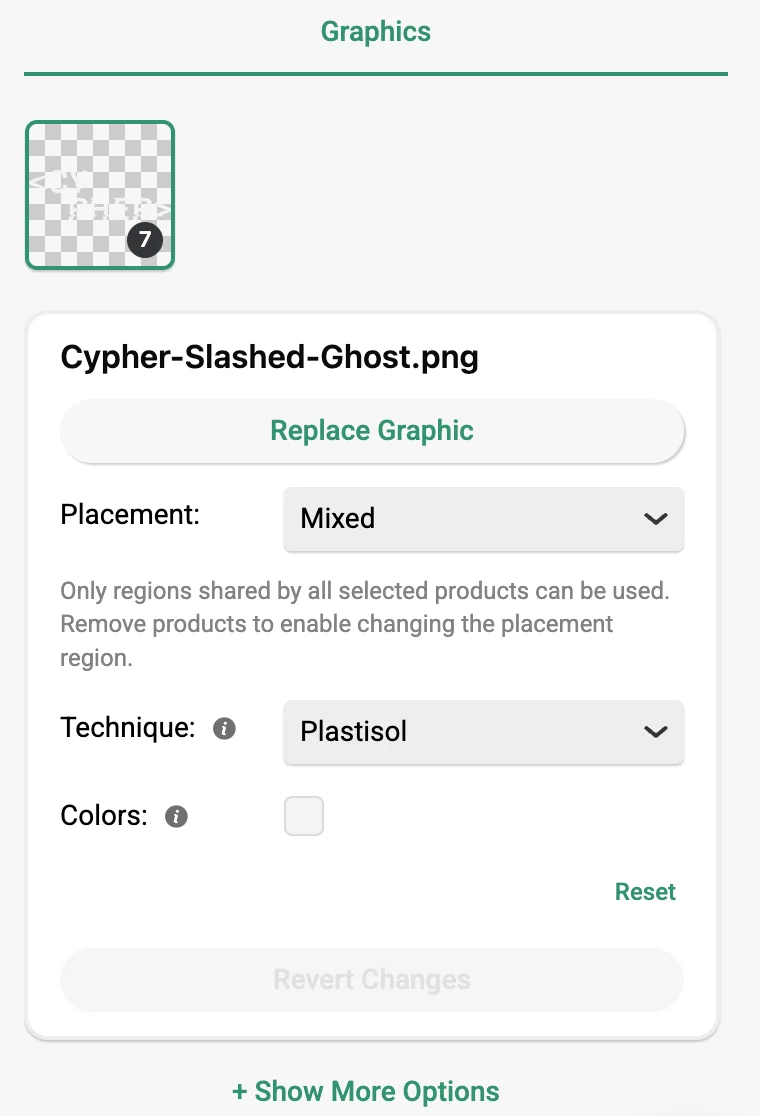
From the Graphics panel, you can make multiple types of updates:
- Replace Graphic with a new file
- Update Placement using predefined regions
- Change Technique (e.g., screen print, embroidery)
- Adjust Colors using color controls
All updates are applied from a single interface.
Step 4: Replace Graphics Across Multiple Products
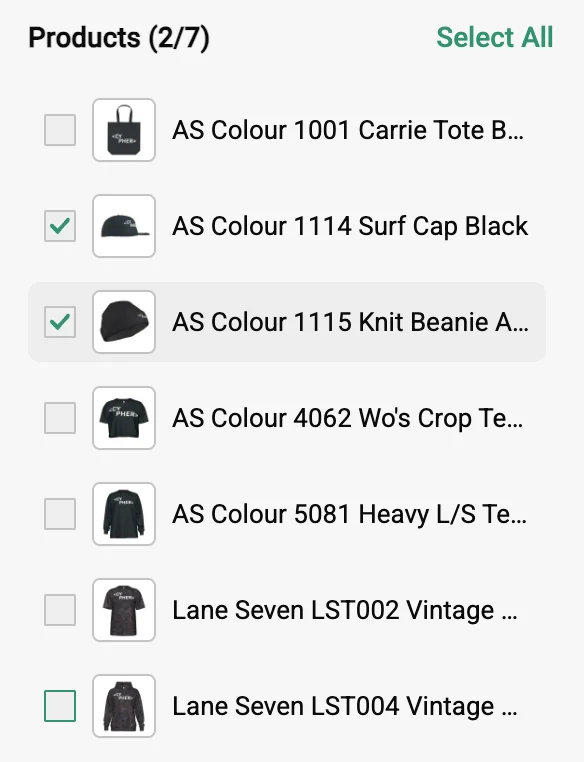
When replacing a graphic:
- A preview of the new artwork is shown
- You can select which products should receive the update from the left panel
This ensures you stay in control of where changes are applied.
Step 5: Preview Changes Before Applying
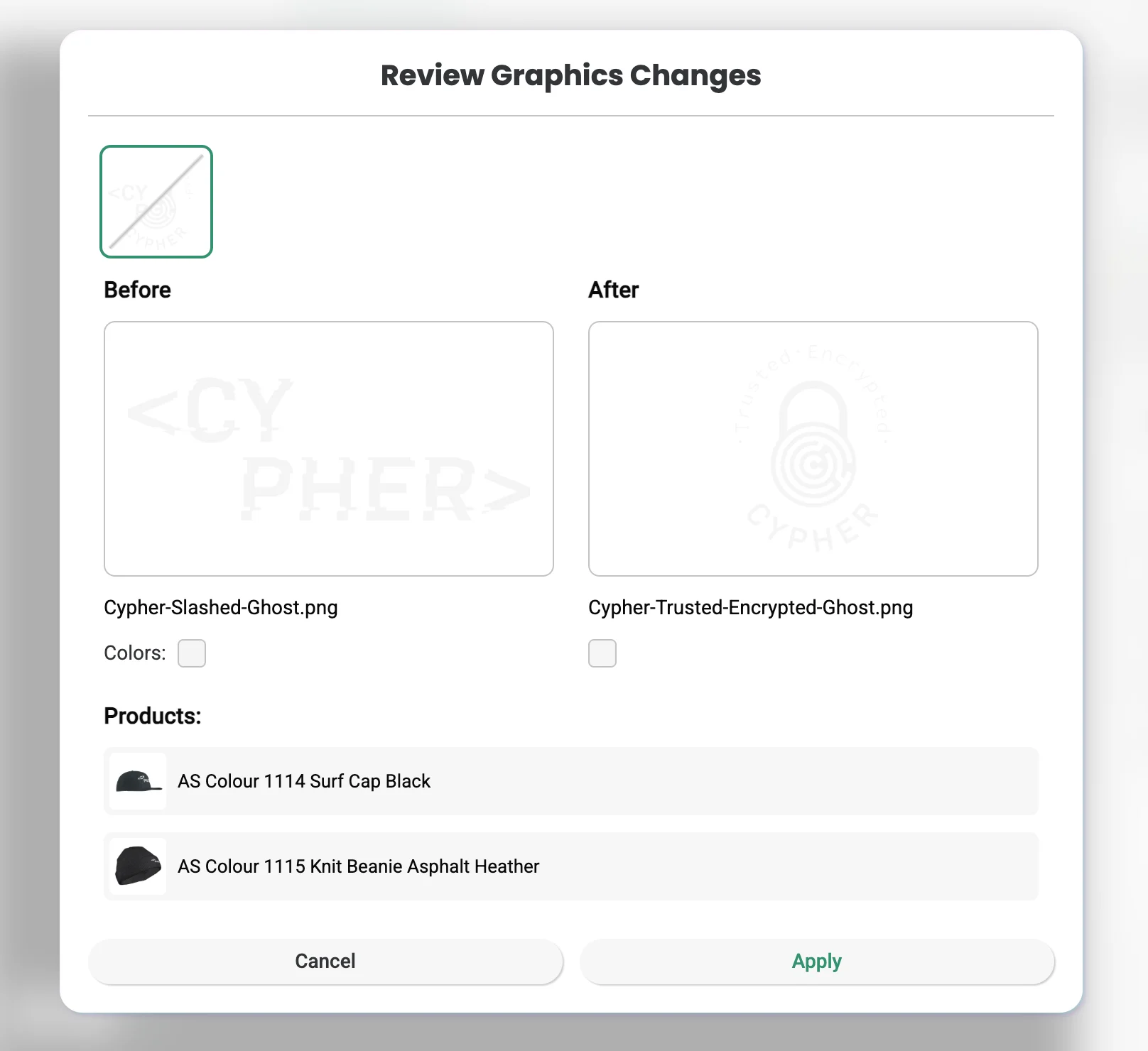
Before committing updates, click Apply Changes to review everything.
This step allows you to:
- Confirm placement and scale
- Validate color and technique
- Ensure consistency across products
No surprises after the fact.
Step 6: Apply Updates Instantly Across Your Collection
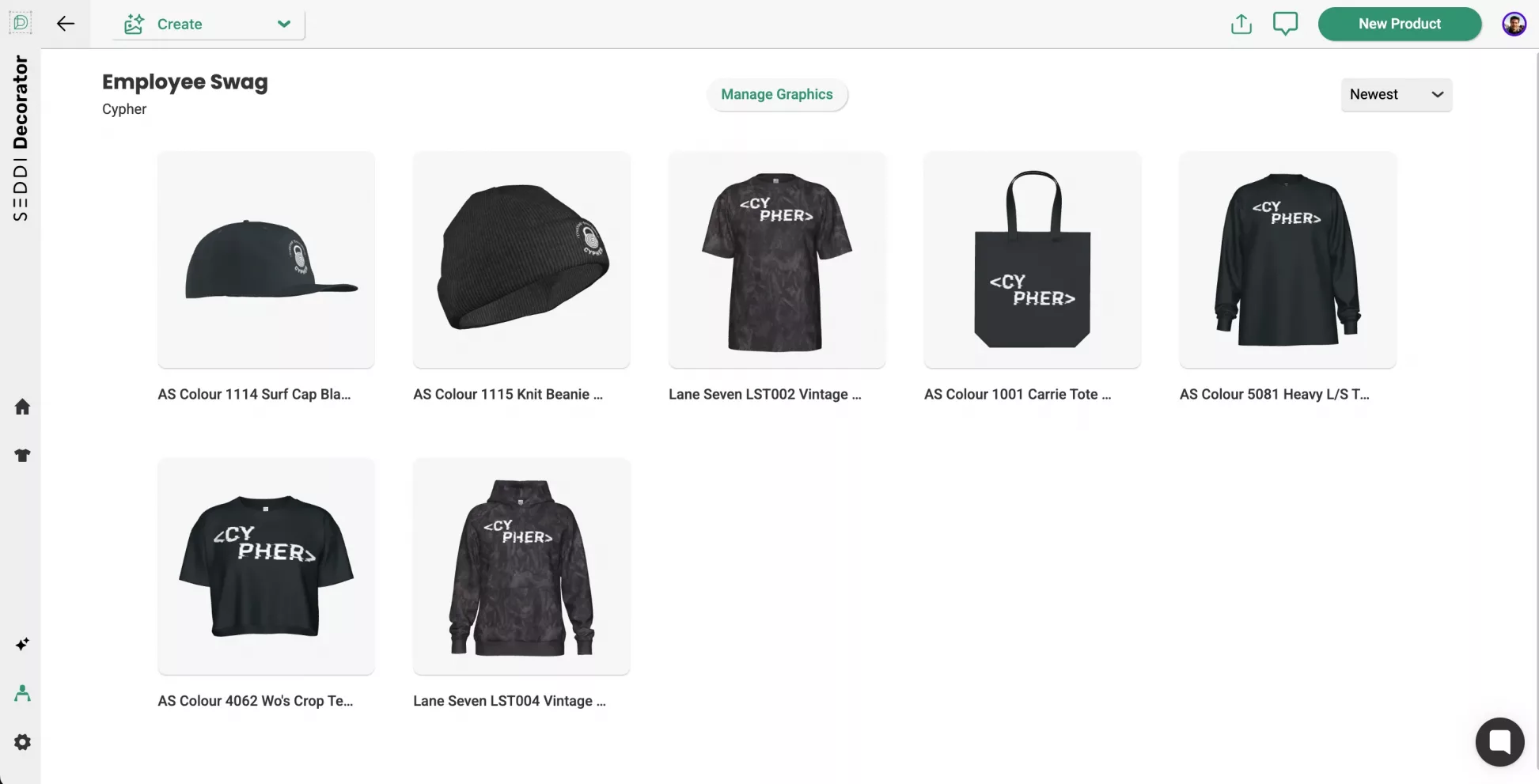
Once confirmed, apply the changes.
All selected products update at once, reflecting the new graphic, placement, or styling.
No need to repeat the process product by product.
Why This Changes the Apparel Mockup Workflow
1. Respond to Client Feedback Faster
When a customer asks for changes, you can update everything in minutes instead of hours.
This keeps momentum high and helps you move deals forward quickly.
2. Keep Collections Consistent
Bulk updates ensure that:
- Graphics match across all products
- Colors stay aligned
- Placement is consistent
No more mismatched versions floating around.
3. Reduce Manual Work
Instead of repeating the same task across multiple mockups, you make the change once.
This saves time for:
- Sales teams
- Designers
- Anyone involved in approvals
4. Improve Approval Speed
Faster updates mean:
- Quicker revisions
- Fewer delays
- Faster client sign-off
Which ultimately leads to faster production.
5. Work from a Single Source of Truth
All updates happen within the same collection and visual system.
That means:
- Everyone sees the latest version
- No confusion between versions
- Clear alignment across teams
A Better Way to Manage Apparel Mockups at Scale
As collections grow and projects become more complex, the ability to update graphics quickly becomes critical.
Manage Graphics gives you:
- Centralized control
- Bulk editing capabilities
- Real-time updates
- Visual consistency
All within the same workflow you already use to design, sell, and produce apparel.

 English
 French
 Spanish