
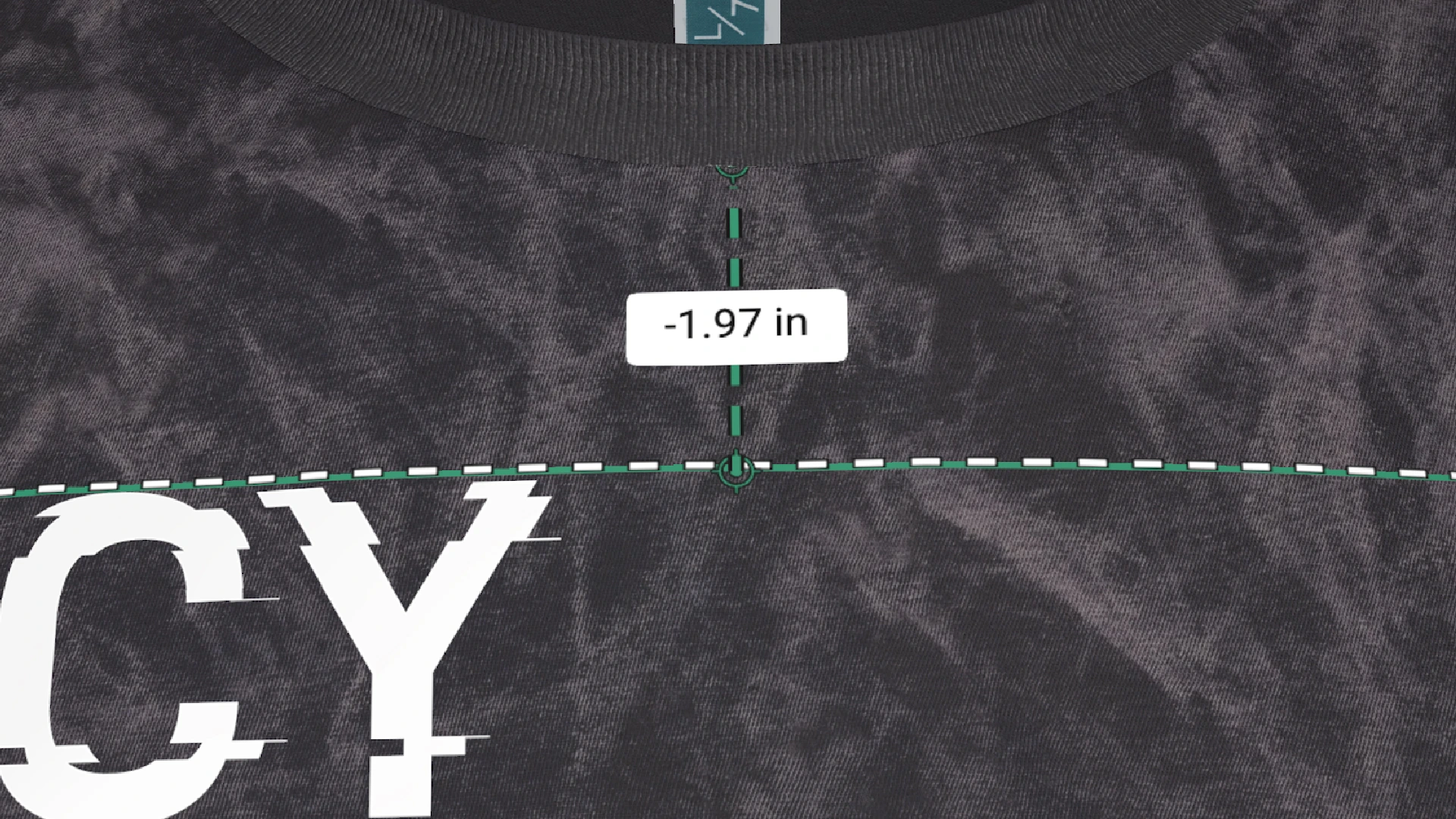
The fastest way to lose trust in a merch project is incorrect placement.
A logo that sits too low.
A chest print that feels oversized.
An embroidery that shifts slightly from one garment to the next.
These aren’t small issues. In reality they’re the kind that lead to rejected orders, reprints, and lost customers.
And most of the time, they trace back to one thing:
No shared standard for measuring placement.
Why Graphic Placement Goes Wrong in Apparel Production
In many workflows, placement is loosely defined.
- Mockups look right, but aren’t tied to real measurements
- Production teams rely on general guidelines or experience
- Different operators place graphics slightly differently
- There’s no clear reference point across teams
The result?
Inconsistency across products, even within the same order.
And when expectations were set visually but not measured precisely, the gap becomes obvious fast.
What Are Points of Measure (POM)?
Points of Measure (POM) are fixed reference points on a garment used to define exactly where a graphic should be placed.
Instead of relying on visual approximation, placement is defined using:
- A starting reference point on the garment
- A defined point on the graphic
- Exact X and Y measurements between the two
This creates a clear, repeatable instruction for production.
How SEDDI Decorator Uses Points of Measure
SEDDI Decorator brings Points of Measure directly into the design process, not just production.
That means:
- Placement is defined while creating the mockup
- Measurements are visible in real time
- The same data carries through to the tech pack
- Production works from exact specifications, not interpretation
The result is alignment from the first visual to the final branded apparel.
How to Use Points of Measure in Decorator
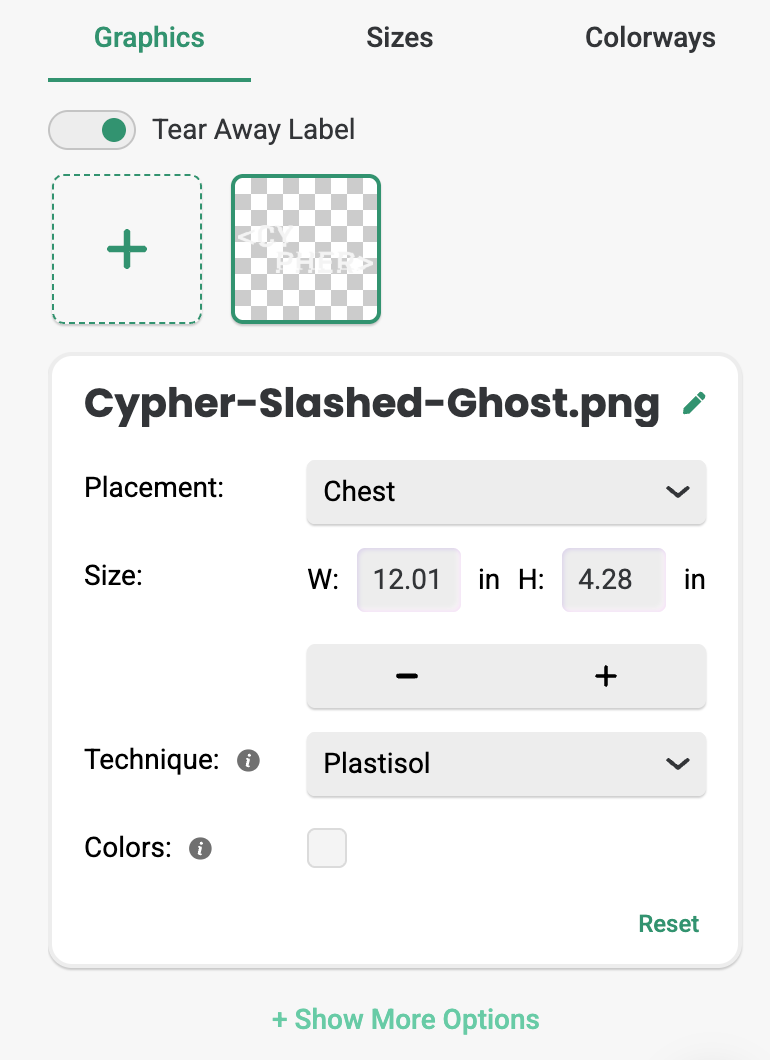
Step 1: Open Graphic Editing Options
While editing a graphic, click “+ Show More Options” to expand advanced controls.
This reveals measurement tools directly within the 3D viewport.
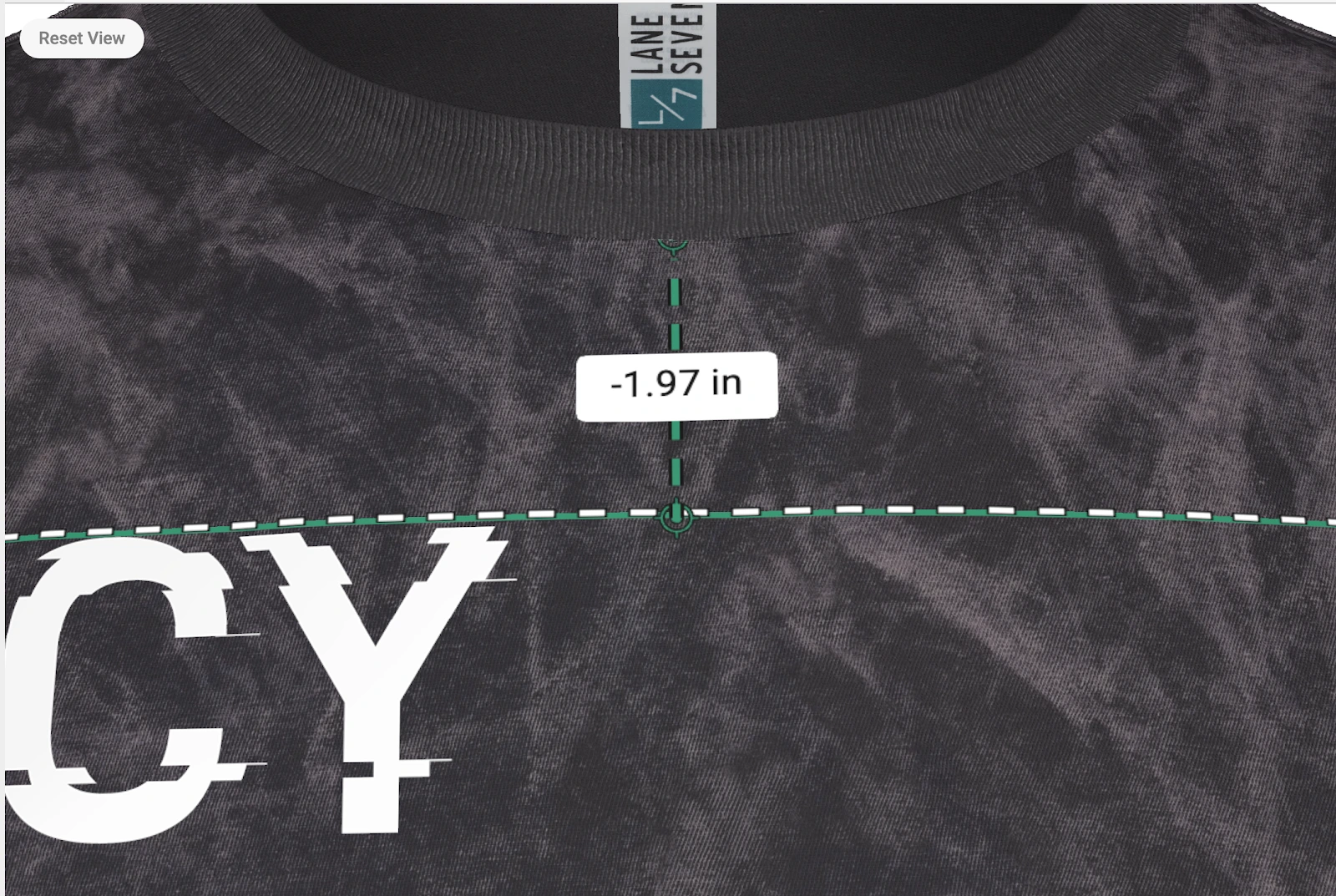
Step 2: View Measurement in Real Time
Once expanded, Decorator displays:
- The distance between the graphic and the nearest Points of Measure
- A visual reference directly on the garment
This gives immediate feedback on placement accuracy.
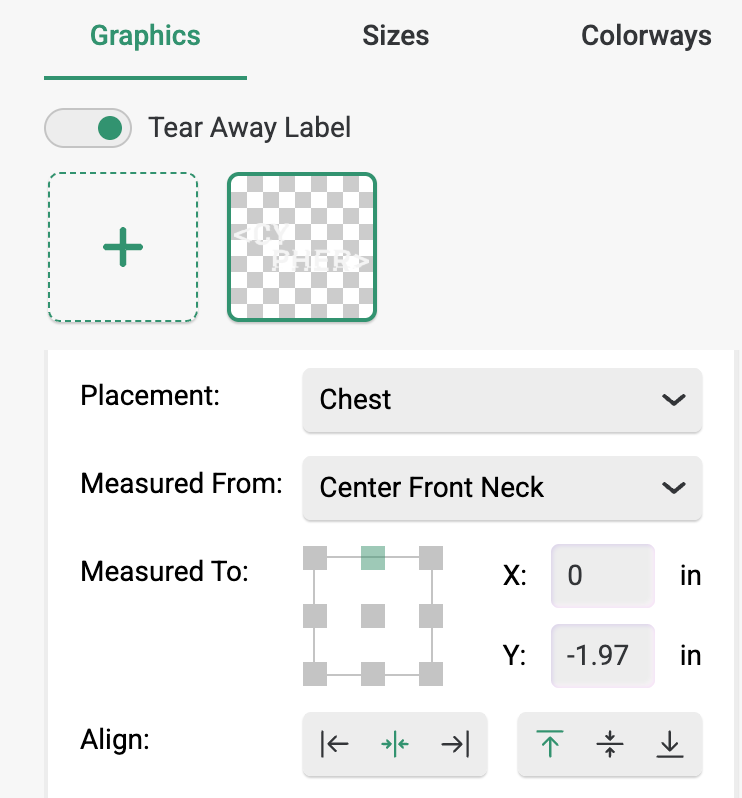
Step 3: Define Your Measurement Anchors
You’ll see two key fields:
- Measured From: the reference point on the garment
- Measured To: the reference point on the graphic
By default, these snap to the closest points, but you can adjust them.
Use the interface to select the exact point on the graphic you want to measure to.
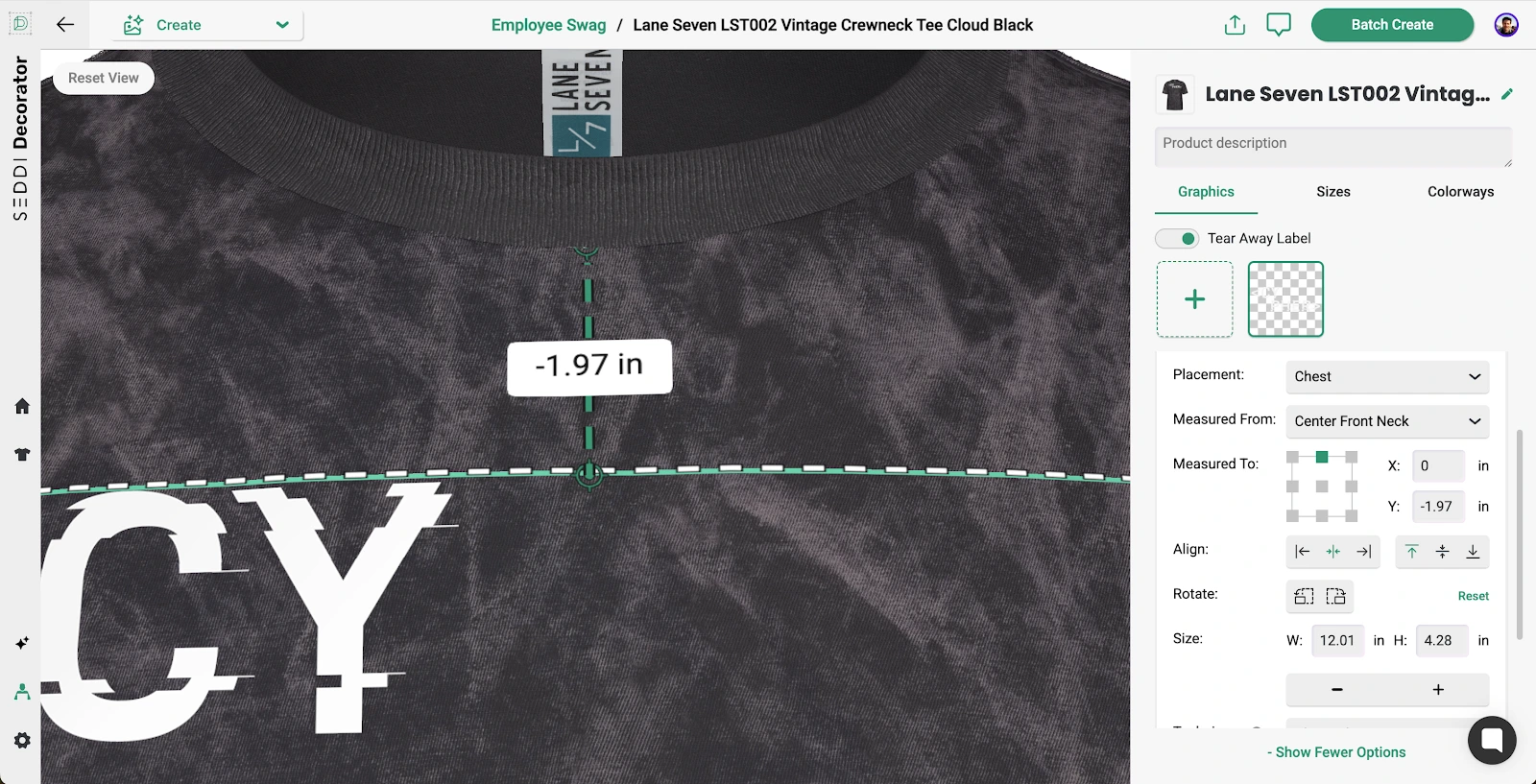
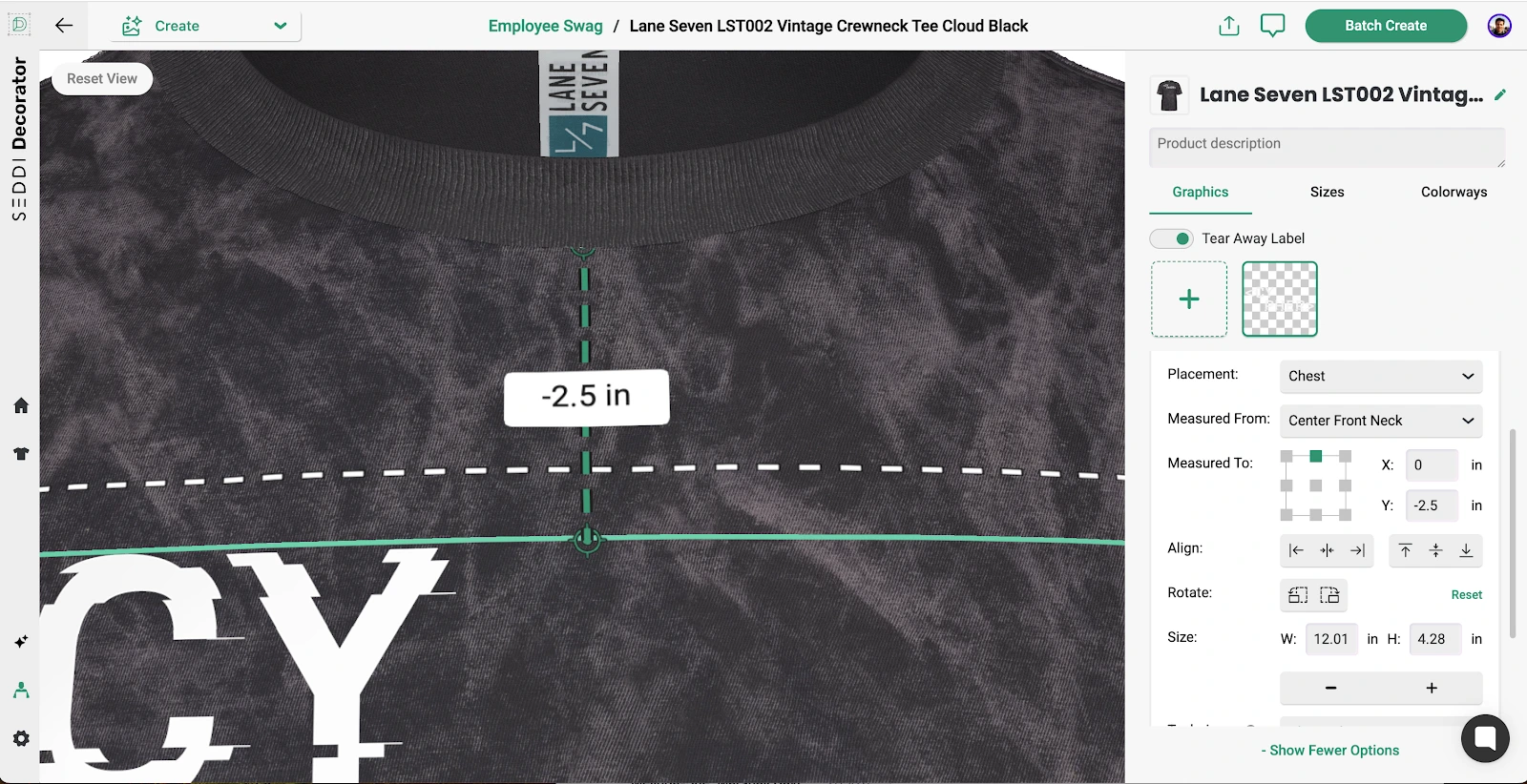
Step 4: Set Exact Placement Using X and Y Values
Fine-tune placement using:
- X (horizontal position)
- Y (vertical position)
Important:
- Measurements to the left or downward are represented as negative values (-)
This allows for precise, repeatable placement across garments.
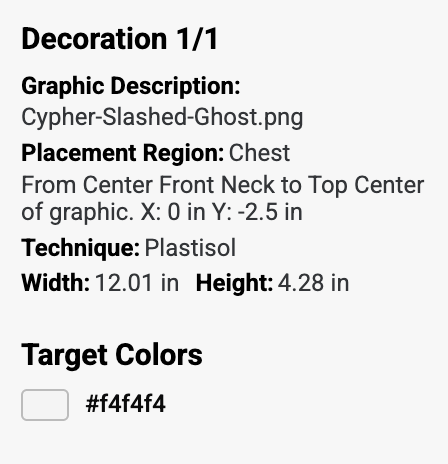
Step 5: Carry Measurements into the Tech Pack
Once placement is set, it automatically carries into the tech pack.
Each graphic includes:
- Defined Points of Measure
- Exact placement coordinates
- Clear production instructions
No additional documentation needed.
Step 6: Apply the Same Logic to 2D Products
Points of Measure also apply to 2D products.
The difference:
- You manually define Measured From, X, and Y
This ensures consistency across all product types.
Why Points of Measure Change the Workflow
1. Eliminate Placement Guesswork
Instead of relying on visual alignment, placement is defined numerically.
This removes ambiguity for:
- Designers
- Sales teams
- Production staff
2. Ensure Consistency Across Every Garment
Every operator follows the same measurements.
This leads to:
- Uniform placement across runs
- Fewer production errors
- Higher quality output
3. Align Mockups with Production Reality
Customers approve what they see.
With Points of Measure:
- Mockups reflect real placement
- Measurements back up the visual
- Expectations match the final product
4. Reduce Rejections and Reprints
Clear placement instructions mean fewer mistakes.
Which means:
- Fewer rejected orders
- Less wasted inventory
- Stronger customer trust
5. Create a True Source of Truth
Placement is no longer:
- Interpreted
- Rebuilt
- Re-explained
It’s defined once and carried through the entire workflow.
From Approximation to Precision
Traditional mockups often rely on visual placement alone.
That works…until it doesn’t.
Points of Measure introduce a system where:
- Placement is defined, not guessed
- Measurements support visuals
- Every team works from the same data
The Bottom Line
Accurate graphic placement is a production detail that’s absolutely critical to delivering on what was promised.
With Points of Measure in SEDDI Decorator:
- Placement is defined during design
- Measurements are visible and precise
- Tech packs include exact positioning
- Production executes with confidence

 English
 French
 Spanish